
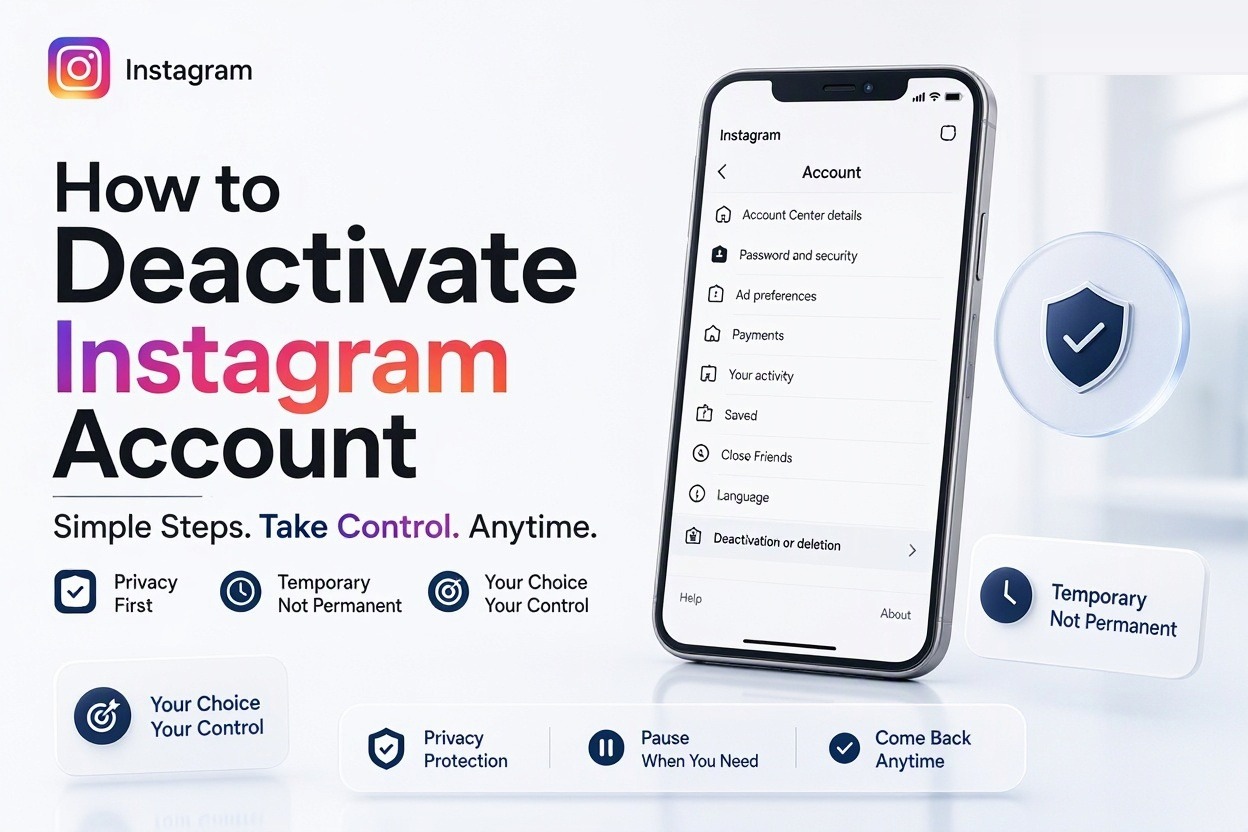
To learn how to deactivate instagram account temporarily, open Instagram settings, go to Accounts Center, select Personal details, tap Account ownership and control, choose Deactivation or deletion, pick your profile, select Deactivate account, verify password, choose a reason, and confirm to hide your profile immediately.
Temporary deactivation hides your photos, likes, comments, and profile from public view while keeping all data saved on Instagram servers for future reactivation. Unlike permanent deletion, this option lets you step away quietly without losing followers, messages, or posted content when you return later.
You can deactivate from a phone browser, desktop computer, or through newer app settings linked to Meta Accounts Center. The process takes less than five minutes if you know your login password. This guide covers mobile steps, desktop steps, reactivation rules, limits, and fixes for common problems today.
People choose to pause their accounts for mental health breaks, exam preparation, work focus, privacy concerns, or unwanted attention from strangers. Others need time to rethink content strategy or reduce screen time without cutting ties completely. Knowing the correct method prevents accidental data loss forever.
Temporary Deactivation Versus Permanent Deletion
Temporary deactivation hides your Instagram presence while preserving everything behind the scenes for quick restoration. Your username stays reserved, direct messages remain stored, and followers will not see your activity. You can return anytime by logging back in with your original credentials.
Permanent deletion removes your profile, photos, videos, comments, likes, and followers forever after a thirty day grace period. Once that window closes, recovery becomes impossible and your username may become available to others. This choice suits users leaving the platform completely rather than taking a short break.
Choosing between pause and removal depends on your long term goals, privacy needs, and attachment to past content. If you might return within months, deactivation offers safety and flexibility. If you want full control over personal data and digital footprint, deletion provides final closure after downloading your information archive.
Many users confuse log out with deactivation and expect invisibility after closing the app. Logging out keeps your profile visible to everyone while only ending your session. True temporary hiding requires completing the official steps in Accounts Center and confirming with your password for full effect today always.
Deactivate Instagram on iPhone and Android
Instagram moved deactivation controls into Meta Accounts Center, so mobile steps look slightly different than older tutorials show. You can start the process inside the Instagram app on iPhone or Android without opening a separate browser. Make sure your app is updated to avoid missing menu options during navigation.
Open your profile, tap the three line menu in the top corner, select Settings and privacy, then open Accounts Center at the top. Tap Personal details, choose Account ownership and control, select Deactivation or deletion, pick the Instagram profile you want to pause, and choose Deactivate account to continue.
Enter your password to verify identity, select a reason for leaving such as needing a break or privacy worries, and tap Continue. Confirm your choice on the screen. Instagram will log you out automatically, and your profile will become invisible to followers and search results within a few minutes.
If you cannot find the option, switch to a mobile browser and visit instagram.com in desktop mode. Log in, go to profile settings, open Accounts Center, and follow the same path. Browser deactivation works identically and helps when app menus fail to load correctly due to outdated software.
Mobile Deactivation Quick Steps
Step 1 Update Instagram to the latest version and confirm your password works for login.
Step 2 Open profile menu, go to Settings and privacy, then tap Accounts Center.
Step 3 Go to Personal details, tap Account ownership and control, then Deactivation or deletion.
Step 4 Select your profile, choose Deactivate account, enter password, pick reason, confirm.
Tip Store your password in a secure manager and verify linked email access before confirming.
Deactivate Instagram on Desktop Browser
Desktop deactivation works well if you prefer a larger screen or cannot access the mobile app settings. Log into instagram.com with your username and password, click your profile picture, open Settings, and navigate to Accounts Center. The desktop layout shows all options clearly without hidden menus or extra scrolling.
Inside Accounts Center, click Personal details on the left sidebar, then select Account ownership and control. Choose Deactivation or deletion, select your Instagram account, and click Deactivate account. You will be asked to enter your password, pick a reason, and confirm. Your account will then log out everywhere.
Desktop browsers allow you to download your data before deactivating, which many users forget on mobile. Go to Your information and permissions, select Download your information, and request photos, messages, and settings. Save the file securely, then return to complete deactivation with confidence that memories are preserved offline safely.
Always confirm you selected the correct profile if you manage multiple Instagram accounts or client pages. The Accounts Center lists every linked profile separately, and choosing the wrong one causes unnecessary downtime. Double check the username, profile picture, and follower count before entering your password and confirming temporary removal.
Reactivate Your Temporarily Deactivated Profile
Reactivation is straightforward and does not require contacting support or filling forms. Just open the Instagram app or website, enter your username and password, and tap Log in. Your profile, posts, comments, likes, and followers should restore automatically within a few minutes if your account was only temporarily disabled.
If login fails immediately after deactivation, wait at least twenty four hours before trying again. Instagram places a short hold to process server changes and prevent abuse. Repeated attempts during this window can trigger temporary blocks. Use the username, check caps lock, and avoid third party tools during reactivation.
Accounts disabled for more than a year usually still reactivate normally, though Instagram may request extra verification. You might need to confirm by email code or SMS code. Keep access to your linked email and phone number current, otherwise recovery becomes harder and may require additional proof of ownership.
Do not create a new account with the same email while waiting to reactivate, because that can cause conflicts and delay recovery. Instagram ties usernames and emails to the profile. If you need access urgently, use a email for a temporary profile and remove it before restoring your account.
Reactivation Example Timeline
Example Day 1 You confirm deactivation and Instagram logs you out on all devices within minutes.
Example Day 2 Profile links show user not found while messages stay stored for contacts.
Example Day 8 You log back in with original credentials and profile restores fully.
Tip If login stalls, wait a full day, clear cache, and avoid repeated password attempts.
What Happens After Temporary Deactivation
Once deactivated, your profile disappears from search, follower lists, tagged photos, and comment threads across Instagram. Other users cannot mention your username or send new message requests. Existing direct message conversations remain in inboxes but show your name as unavailable until you log back in and restore full visibility.
Your likes, comments, and follows are hidden rather than deleted, so engagement returns after reactivation. Third party apps lose access during the pause. Scheduled posts through creator tools will not publish while disabled. Insights history remains stored but stays inaccessible until you fully reactivate the account on any device.
Followers do not receive notifications when you deactivate or reactivate, which helps you take quiet breaks. Your follower count stays frozen in lists. If someone visits your profile link, they will see an error stating the user was not found. This message disappears once you return and log in.
Direct messages sent before deactivation stay visible to recipients, but your profile picture disappears from chat headers. Group chats continue without your active presence, and members cannot add you back until reactivation. Story replies, call history, and shared posts remain stored securely, ensuring conversations resume naturally after your return.
Instagram Deactivation Limits and Rules
Instagram allows deactivation only once per week from the same account. If you reactivate and try to pause again, the option will be blocked until seven days pass. This rule prevents spam behavior and server strain. Plan your break carefully to avoid staying visible when you wanted time offline.
You must know your password to deactivate, and reset links must work before you proceed. Users who signed up through Facebook without an Instagram password need to create one. Business accounts linked to ad campaigns should pause promotions, otherwise billing may continue while the profile stays hidden from customers.
Deactivation does not cancel data collection for linked Meta services or stop Messenger conversations tied to your account. If your Instagram is connected to Facebook, Threads, or WhatsApp Business, those connections remain partly active. Review Accounts Center permissions carefully so you know what stays visible across the Meta ecosystem.
Teen accounts with parental supervision may need guardian approval before deactivation completes. Supervision dashboards track pause requests and send alerts to parents. If you are under eighteen and cannot find the option, ask a parent to review Family Center settings and approve temporary removal for the agreed break period.
Deactivation Versus Deletion Comparison
Deactivation Hides profile temporarily, keeps posts and followers, allows instant return by login, limited to once per week.
Deletion Removes profile permanently after thirty days, erases posts and followers, requires new account to return.
Tip Choose deactivation for breaks, deletion only for complete exit after downloading data archive.
Fixing Deactivation Errors and Login Problems
Many users see a message saying you cannot deactivate right now because the weekly limit was reached. The safest fix is to wait seven days, then try again on a stable connection. Avoid VPNs during the process, as altered locations can trigger security checks that block account changes temporarily.
If Instagram says your password is incorrect, reset it through email or SMS and wait an hour before retrying. Clear app cache on Android, update the app, or switch to desktop browser for stability. Make sure two factor codes arrive properly, or use backup codes stored during security setup.
Business or creator accounts sometimes fail to deactivate because of active ad balances, branded content approvals, or connected shops. Pause promotions in Ads Manager, remove scheduled partnerships, and disconnect shopping catalogs if possible. After billing issues clear, return to Accounts Center and complete deactivation without payment verification interruptions today.
Linked Facebook login often causes confusion when passwords do not match across Meta products. If you normally tap Continue with Facebook, set an Instagram password in Accounts Center first. Log out everywhere, log back in with the new password, then attempt deactivation again using consistent credentials on one device.
Smart Steps Before Taking an Instagram Break
Download your Instagram data including photos, videos, stories, messages, and profile settings before starting a break. This backup protects memories if you later choose permanent deletion or lose email access. Store the export on an external drive or secure cloud folder with a clear date label for easy retrieval.
Notify close friends, clients, or followers if they expect replies during the pause. Share an alternate contact like email or another social profile for urgent matters. Creators should post a short story explaining the break, so audiences do not assume the account was hacked, banned, or abandoned without warning.
Review linked apps, websites, and devices that use Instagram login before deactivating. Revoke access for tools you no longer use, change your password to something strong, and enable two factor authentication. These steps keep your account secure while hidden and prevent unauthorized logins that could cancel the break unexpectedly.
Check active subscriptions, badges, and monetization tools tied to your creator account before pausing. Payouts may delay while disabled, and live badges become unavailable to supporters. Document tax information, save performance reports, and inform brand partners about timelines so campaigns can pause fairly without contract conflicts or missed deadlines.
Pre Break Safety Checklist
Checklist Confirm password, email access, phone number, and backup codes are current and stored safely.
Checklist Download photos, videos, messages, and insights archive to secure storage with dated folder.
Checklist Pause ads, inform followers, revoke third party access, enable two factor authentication.
Tip Keep a written note of reactivation steps and expected return date for accountability.
Alternatives to Full Deactivation for Privacy
If full deactivation feels too extreme, switching to a private account offers strong control without disappearing completely. Only approved followers can see posts, stories, and reels. You can remove unwanted followers manually, block suspicious profiles, and limit comments to reduce stress while staying connected with friends and family members.
Muting, restricting, and unfollowing accounts can improve your feed without pausing your profile. Restrict abusive users so comments stay hidden, mute stories that waste time, and use sensitive content controls to filter unwanted posts. Limits and quiet mode also help reduce night scrolling and improve focus during work hours.
Archiving posts instead of deactivating lets you clean your profile while keeping followers intact. You can hide photos, reels, or stories from public view without losing likes and comments. Removing the app from your phone also creates distance, since you cannot receive push alerts while keeping your account active.
Business owners who need a pause can update bios to show away status and turn off message notifications. This approach keeps search visibility while setting clear expectations. Customers see response delays, staff avoids pressure, and you maintain brand trust without hiding your catalog or past reviews from public view.
Conclusion
Taking a break from social media can restore focus, protect privacy, and improve daily well being with clear steps. Temporary deactivation gives space without erasing memories, contacts, or creative work. With data backed up and settings reviewed, you can pause confidently and return refreshed whenever you feel ready today.
Now that you know how to deactivate instagram account on mobile and desktop, you can choose timing that fits personal goals. Follow password rules, respect weekly limits, and keep recovery email access active. Careful preparation ensures reactivation stays smooth and stress free after your time away ends today.
Remember that alternatives like private mode, muting, archiving, and time limits may solve smaller issues without full invisibility. Evaluate whether you need complete quiet or just better boundaries. Many users find reduced notifications and curated feeds provide enough relief while maintaining important connections with friends and clients daily.
If problems arise, use troubleshooting steps for password errors, weekly blocks, and business billing holds. Keep app updated, avoid VPN interference, and contact support only after basic fixes fail. A thoughtful pause protects mental health, supports productivity, and leaves room for a positive return to online community life today.
Frequently Asked Questions
How Long You Can Keep Instagram Deactivated?
You can keep your account deactivated for as long as you want with no automatic deletion deadline. Instagram preserves data until you log back in. Just maintain access to your email and password for smooth future reactivation always.
Will Followers Know When You Deactivate Instagram?
Followers do not receive alerts when you pause or return. Your profile disappears from search and feeds. Message threads remain but show no profile. Once you log in again, visibility restores and followers can interact normally without delay.
Can You Deactivate Instagram Without a Password?
No, Instagram requires your password to confirm deactivation for security reasons. If you forgot it, use Forgot password to reset by email or SMS. After setting a new password, wait briefly, then proceed with deactivation steps in Accounts Center today.
Why Instagram Will Not Let You Deactivate This Week?
Instagram blocks repeat deactivation within seven days of the last change. Billing issues, active promotions, or unstable connections can also prevent completion. Wait out the limit, pause ads, update the app, and try again on desktop with stable service.
Do You Lose Photos After Temporary Deactivation?
No, temporary deactivation hides photos, videos, reels, likes, and comments without deleting them. Everything restores after you log back in. For extra safety, download your information archive before pausing, especially if you plan an extended break from posting.