
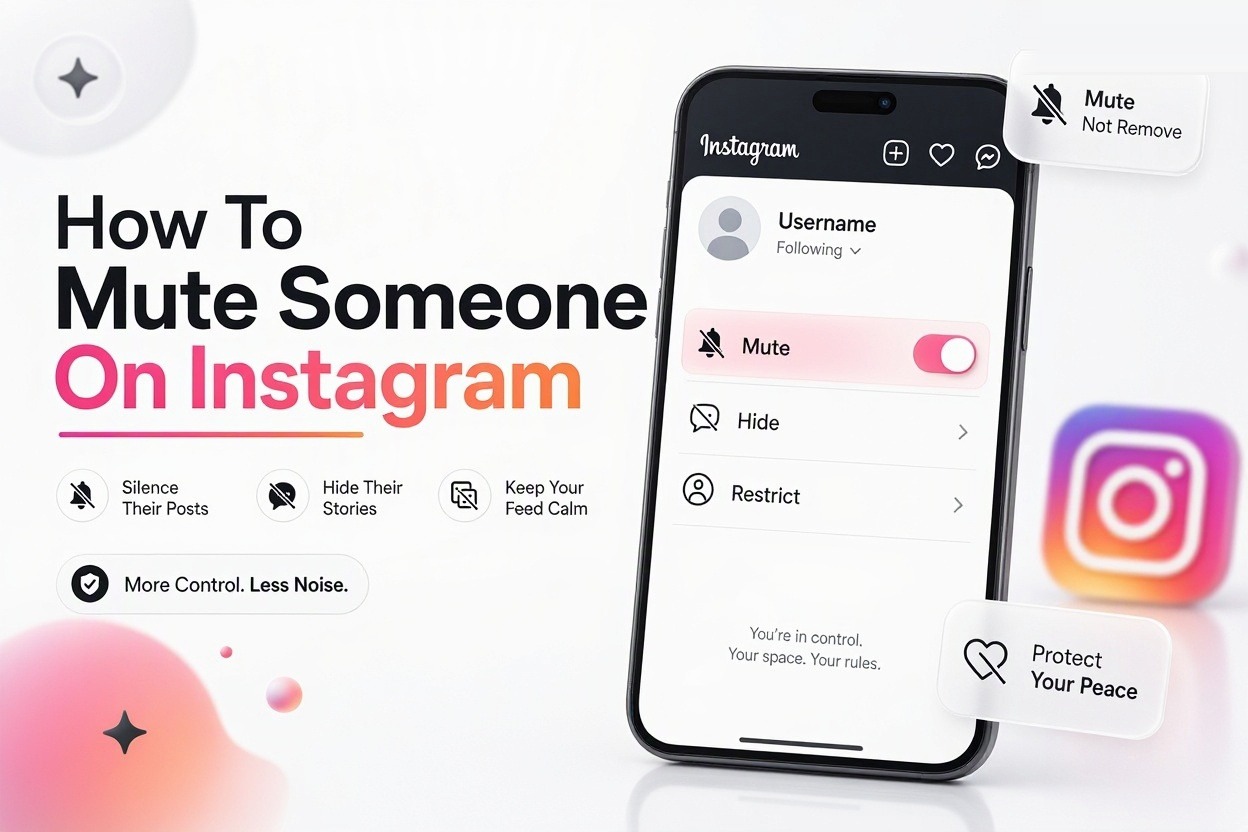
To learn how to mute someone on Instagram, open their profile, tap the Following button, choose Mute, then toggle posts, stories, notes, or broadcast chats. The person will not receive any notification, and you can reverse the setting at any time.
Many people use muting to clean up a crowded feed without unfollowing friends, family, coworkers, or brands. It helps reduce noise from frequent posters while keeping relationships intact. You still follow the account, but you control what appears in your daily browsing experience.
Mute settings work quietly behind the scenes and do not affect messages or your follower status. You can still visit the muted profile manually, like posts, and send direct messages. This flexibility makes muting ideal for temporary breaks or long term feed curation without drama.
This guide walks through every method to mute posts, stories, notes, and broadcast channel messages on iPhone, Android, and desktop. You will also learn limits, differences from restricting or blocking, and fixes for common issues when mute options do not appear as expected.
What Muting Does on Instagram
Muting removes someone’s posts, stories, or notes from your feed and tray without unfollowing them. The muted account remains in your following list, and they can still see your content based on privacy settings. It is a private action that prioritizes your comfort and attention.
Unlike unfollowing, muting preserves social connections and avoids awkward conversations at work or school. You will not see automatic updates, yet profile visits still show recent posts. This balance helps you stay connected on your terms while reducing unwanted content, spoilers, or repetitive promotional material.
Muting does not stop direct messages, comments, tags, or mentions from that person. If you need distance from interactions, consider restricting or blocking instead. Think of muting as a content filter, not a full privacy barrier, designed mainly to improve what you see when scrolling daily.
Mute Posts Stories and Notes Explained
Instagram lets you mute posts, stories, and notes separately, giving precise control over visibility. Muting posts hides photo, video, and reel updates from your home feed. Muting stories removes their circle from the top tray. Muting notes hides short status updates from the inbox area.
Broadcast channel messages can also be muted if you joined someone’s channel but want fewer alerts. This option stops notifications without leaving the channel. You can catch up later by opening the channel manually. It is useful for creators who post frequent links, polls, or behind the scenes updates.
You can combine options or mute only one content type based on preference. For example, keep stories but hide feed posts from an active poster. Or mute notes from a coworker while still supporting their work posts. Adjustments apply instantly and can be changed individually at any moment.
Quick Steps to Mute From Anywhere
Step 1: Open Instagram and go to the profile you want to mute by searching the username.
Step 2: Tap Following below the bio, then tap Mute from the popup menu.
Step 3: Toggle Posts, Stories, Notes, or broadcast chats according to what you want hidden.
Step 4: Exit settings to save automatically, then check feed to confirm changes applied.
Step 5: Return to the same menu anytime to unmute by switching toggles back.
How to Mute Someone on Instagram From Their Profile
The profile method is the most reliable way to control all mute options in one place. Search for the username or tap it from comments. Once on the profile, tap the Following button under the bio. A menu appears with options for Add to favorites, Mute, Restrict, and Unfollow.
Tap Mute, then use the toggles for Posts, Stories, Notes, and broadcast chats. Blue means muted, gray means visible. Changes save automatically when you exit the screen. You do not need to confirm or restart the app. The feed updates within seconds to reflect your new preferences.
If you do not see Following, you may not follow the account yet or you use a desktop layout. On desktop, click the three dots on the profile and look for mute controls. On mobile, update the app if buttons look different. Older versions sometimes hide notes or channel options.
How to Mute Someone From the Instagram Feed
You can mute directly from a post without visiting the profile, which saves time while scrolling. Tap the three dots in the top right corner of the post. Select Hide, then choose Mute account name. Instagram will ask whether to mute posts, stories, or both based on context.
To mute stories from the tray, press and hold the person’s story circle at the top of home. A menu appears with Mute options for stories or stories and posts together. Confirm your choice, and their circle moves to the end or disappears. You can view it by scrolling right.
Feed muting is ideal when you notice repetitive content but do not want to search for profiles. It works for sponsored posts and suggested accounts as well, though options may say Hide or Not interested. For regular follows, always choose Mute to keep following while filtering future updates.
Tips to Manage Muted Accounts Effectively
Tip 1: Review muted accounts monthly under Settings and privacy, then Muted accounts.
Tip 2: Use favorites to prioritize close friends while muting noisy follows in background.
Tip 3: Keep notes muted for coworkers but allow posts for team updates and support.
Tip 4: Unmute temporarily during events, launches, or travel to catch timely updates.
Tip 5: Combine mute with Hide Story settings for stronger privacy control when needed.
How to Mute Notes and Broadcast Messages
Notes appear above direct messages and often include song shares, moods, or short announcements. To mute notes, open the profile, tap Following, then Mute, and toggle Notes. You will stop seeing their bubbles in the inbox header. Message history and chat access remain completely unchanged for both sides.
Broadcast channels require attention because muting a profile does not always mute channel alerts. Open the channel from inbox, tap the channel name at the top, then select Mute messages or Mute notifications. Choose duration or keep muted until you change it. You remain a member with full access.
On desktop, notes and channels have limited controls compared to mobile apps. If toggles are missing, use the iPhone or Android app to adjust settings. Changes sync across devices once saved. Always update Instagram to access newer mute categories introduced in recent releases for creators and brands.
Mute Versus Unfollow Restrict and Block Compared
Muting keeps the follow relationship while hiding selected content, making it the least disruptive option. Unfollowing removes their posts completely but may signal distance. Restricting limits comments and messages without full blocking. Blocking cuts all contact, hides profiles mutually, and removes follower connections.
Choose mute when content volume is the only problem and the relationship matters. Choose unfollow when you no longer want any association in your following list. Choose restrict for unwanted comments or pressure in messages. Choose block for harassment, spam, or safety concerns requiring complete separation online.
Muted users can still tag you, mention you, and comment publicly unless you adjust other privacy settings. Restricted users see limited feedback about their comments. Blocked users cannot find you through search. Review your goals before acting, since each option creates different social signals and visibility outcomes.
Mute vs Restrict vs Block Compared
Option 1: Mute hides posts stories notes, follow stays, no notification, best for noisy feeds.
Option 2: Restrict limits comments messages, follow stays, no notification, best for awkward interactions.
Option 3: Unfollow removes all posts, follow removed, no notification, best for clean break.
Option 4: Block hides everything both ways, unfollows both, no notification, best for safety issues.
How to Unmute Someone on Instagram
Unmuting restores their posts and stories to your normal feed without sending alerts. Visit their profile, tap Following, then Mute. Toggle Posts, Stories, or Notes back to visible. Gray toggles mean content will appear again. Allow a few minutes for the algorithm to reintroduce their updates naturally.
You can also unmute from Settings by opening profile menu, tapping Settings and privacy, then Muted accounts. This screen lists everyone you muted with categories shown. Tap the account, then adjust toggles. It is helpful when you forget whom you muted months ago and want a full review quickly.
If unmuted content still does not appear, check that you still follow the account and have not hidden stories separately. Restart the app, clear cache on Android, or reinstall on iPhone. Algorithm ranking may also delay posts from inactive accounts until you engage with likes or profile visits again.
Privacy Limits of Muting on Instagram
Muting is discreet but it does not hide your activity from the muted person. They can view posts, stories, and profile if your account is public. They can comment and reply to your content. If privacy is the goal, use Close Friends, private account, or Hide Story controls alongside muting.
Business and creator accounts will not know they were muted, yet they may notice lower story views or engagement. This is normal and not a penalty. Analytics do not identify who muted. If you manage a brand, focus on content quality rather than tracking followers or mute actions over time.
Muting does not affect follower counts, verification, or eligibility for promotions. You remain counted as a follower for giveaways and Close Friends lists. The muted account can still add you to broadcast channels or group chats. Adjust message controls separately if you want reduced contact beyond feed filtering.
Troubleshooting Mute Settings Issues
Fix 1: Update Instagram to the latest version to restore the missing Notes toggle.
Fix 2: Switch from desktop to mobile app for full mute controls and channel settings.
Fix 3: Re-follow the account if the Following button does not show a Mute option.
Fix 4: Restart the app and check internet if toggles do not save correctly.
Fix 5: Clear cache or reinstall if muted posts still appear in your home feed.
How to Find Your Muted Accounts List
Instagram keeps a central list of muted accounts under Settings and privacy. Tap your profile picture, open the menu, choose Settings and privacy, then tap Muted accounts. You will see profiles grouped with mute types. This page makes bulk review faster than visiting each profile one by one.
From the muted list, tap an account to open its profile or adjust settings directly. Some versions allow quick unmute from the list itself. Use search at the top if the list is long. Regular audits help ensure old mutes still match your current interests, work relationships, and content preferences.
If the Muted accounts page is empty but you still miss content, check Hide settings, favorites, and algorithmic recommendations. You may have snoozed suggested posts or restricted stories separately. Also confirm you follow the person, since unfollowing removes them from mute lists and stops all future updates automatically.
Best Practices for a Cleaner Instagram Feed
A cleaner feed starts with intentional follows, favorites, and mute choices rather than mass unfollowing. Audit who posts most often and whether their content adds value. Mute high volume meme pages, repost accounts, or sales promos while keeping meaningful friends, educators, and local businesses visible in daily scrolling.
Use favorites to ensure close friends always rank higher, even when others are muted. Add up to fifty accounts to favorites through Settings or feed preferences. Their posts show with a star and appear first. This combination lets you reduce noise without missing birthdays, announcements, or important life updates.
Review feed preferences quarterly to match changing jobs, hobbies, or family needs. Unmute accounts that became relevant again and mute new sources of clutter. Small adjustments prevent overwhelm better than drastic purges. A balanced approach keeps Instagram enjoyable, informative, and aligned with current priorities and time.
Examples of When Muting Helps
Example 1: Mute a friend posting daily wedding countdowns but keep congratulating them on milestones.
Example 2: Mute brand sales stories during budget months while still following for future support.
Example 3: Mute coworker notes during work hours to reduce inbox distractions and stay focused.
Example 4: Mute spoiler accounts during sports seasons or TV show releases to avoid results.
Example 5: Mute travel reels temporarily when planning your own trip for later inspiration.
Conclusion
Muting gives you quiet control over Instagram without harming relationships or follower counts. You can hide posts, stories, notes, or channel alerts separately and adjust choices anytime. It works on mobile and desktop, stays private, and helps reduce clutter from frequent posters or seasonal content overload.
If you forget how to mute someone on instagram and need a refresher, return to the Following menu on the profile and check each toggle. Mobile apps show complete options, while desktop may need extra clicks. Regular reviews keep feeds aligned with interests.
Pair muting with favorites, Close Friends, and notification settings for deeper control. Unmute during events or launches, then reapply filters afterward. Use the muted accounts list to audit choices quarterly. Small habits keep scrolling positive without constant unfollowing or awkward social tension.
Start today by muting one noisy account and notice the difference in your home feed. You can always reverse the setting or consider restrict and block for stronger boundaries. Thoughtful curation protects attention, preserves connections, and makes time on Instagram more enjoyable and purposeful every day.
Frequently Asked Questions
What happens when you mute someone on Instagram?
Their posts, stories, or notes stop appearing in your feed, but you remain followers. You can still visit their profile manually. They receive no notification, and likes, comments, and messages continue working as before without restrictions.
Will the person know you muted them on Instagram?
Instagram never sends mute notifications, so the person will not know directly. They might guess if engagement drops, but no alert appears. Your following status stays intact, making muting a discreet way to filter content.
Can you still message a muted account on Instagram?
Yes, muting only hides feed content and does not block messages. You can send and receive direct messages normally. To reduce message alerts, adjust notification settings or use restrict separately for stronger limits on replies and requests.
How to unmute posts and stories on Instagram?
Open their profile, tap Following, then tap Mute. Toggle posts, stories, or notes back to visible. You can also go to Settings and privacy, open Muted accounts, and manage toggles for multiple profiles from one central list.
Why is mute option not showing on Instagram?
The option may be missing due to an outdated app, desktop limits, or because you do not follow the account. Update Instagram, switch to mobile, and confirm following status. Restarting the app often restores hidden toggles quickly.